TweetSim’s account-status tools create illustrations. They do not check a real account, block another user, or change anyone’s status on X. Use them for a fictional story, interface demonstration, or training slide, and label the result as a mockup.
Choose the right template
- Blocked account generator: depicts one account blocking the viewer.
- Restricted account generator: depicts a temporary restriction warning.
- Suspended account generator: depicts an account-suspended notice.
These are separate templates, not a status selector inside one editor. Each has a name field, handle field, and theme selector.
Worked example: a fictional blocked account
Open the blocked-account tool. Enter Fictional Demo as the display name and @demo_account as the handle, then choose Light.
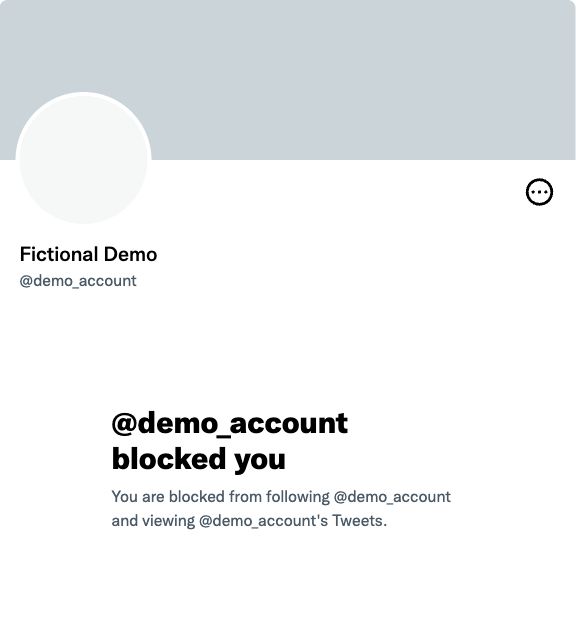
Actual preview created for this guide. “Fictional Demo” is a teaching label; this image is not evidence of a real block.
Changing the handle updates both the profile and the blocked-account message. In this example, the heading becomes @demo_account blocked you. The name changes the profile heading above it.
Change the theme and export
Use the theme buttons below the preview to switch between Light, Dark, and Dim. The preview updates directly, so there is no separate Generate button.
Check that your chosen name and handle fit, especially on a phone. Then select Export PNG in the toolbar below the preview. The blocked-account tool creates blocked.png.
Open the downloaded file before using it. Put a caption such as “Fictional interface example” beside it in your slide, document, or post. The tools do not automatically add that caption to every export.
What can you customise?
You can edit the displayed name, handle, and colour theme. The notice text and template layout are preset. These tools do not currently expose arbitrary message editing, profile-photo uploads, or account lookups.
For a different notice, open its dedicated generator and repeat the name, handle, and theme steps. Do not infer a real account’s status from a generated image.
Before sharing
Check spelling, text wrapping, and the exported crop. If the file does not appear, inspect your browser’s downloads and any download-permission prompt. If it looks wrong, return to the preview and check the selected template and theme.
For a fictional post rather than an account notice, use the fake tweet maker guide. To preserve a real public post with its source, use the tweet-to-image guide. The tool overview explains when to choose each workflow.